A/B Tests in Traffic Control
You can run an A/B test on part of an AI Pricing Model's traffic without rebuilding the model or changing the paywalls it runs. Add the placement that hosts the test to the model's distribution, give it a weight, and that share of the model's requests flows into the test while the model keeps deciding the rest.
This works because a Placement allocation serves whatever that placement is currently serving. Point one at a placement that is running an A/B test and the test is what those requests get, variant selection included. The model keeps its own paywalls and its own baseline, and the test's variants stay outside the model entirely. The only thing you decide here is how much traffic reaches the test.
Why run a test this way
-
Try creatives or price points you are not ready to hand to the model. The test placement can hold anything: a new design, a different price ladder, a seasonal offer. None of it has to be attached to the model or evaluated by it.
-
Validate a new idea against the model's own performance. The model keeps running on its share of traffic for the whole time the test is live, so you are measuring the new idea while your current best is still working, not after pausing it.
-
Keep the majority on the model. Give the test 10, 20 or 30 percent and the model still decides everything else. You choose how much of your revenue is exposed to an unproven paywall.
-
Ramp up or down by moving one number. Raising or lowering the test's share is a weight edit and a save, with the difference moved to or from another row so the total is still 100. It applies from the next paywall request, with nothing to restart and no traffic to migrate.
Before you start
-
The A/B test has to exist first, on a placement. Build and run it in the A/B Testing section, choosing the Placement and Audience it runs on. See Perform an A/B Test. Traffic Control targets a placement, never a paywall ID and never a test directly, so what your allocation serves is whatever that placement is routing at the time.
-
Use a different placement from the one the model is bound to. An allocation that resolves back to this model is a loop, and nothing rejects it when you save. It is caught at serve time instead, where the paywall request fails with
Circular placement allocation detectedrather than returning a paywall to your app.
Set it up
-
Create the A/B test on its placement and start it. Note the placement's name, you will pick it by name in a moment.
-
Open the model's Traffic Control tab and click + Add Subplacement in the always-on distribution at the top of the tab. That section is headed Current Distribution, or Default Distribution while a schedule is running.
-
In step 1 of the dialog, find the placement that hosts the test and select it. Each placement in the list carries a chip for the routing its audiences use, AI Model, A/B Test or Paywall, so an A/B Test chip confirms you have the right one. Click Continue to Traffic Allocation.
-
In step 2, Traffic Allocation, set the weights. The dialog lists the existing AI Model and baseline rows alongside the new placement, so you can re-balance all of them at once. Weights must total exactly 100, and Confirm stays disabled until they do.
-
Back on the tab, check that the header reads Total: 100% and click Save Changes.
Entering a 50% model, 50% test split. The AI Model and baseline rows are permanent and cannot be removed, only re-weighted, so a two-way split is entered as three numbers: AI Model 50, baseline 0, placement 50. A weight of 0 is a valid saved value and that row is never drawn by the split. The baseline can still appear as the AI Model target's fallback, see Good to know below.
A worked example
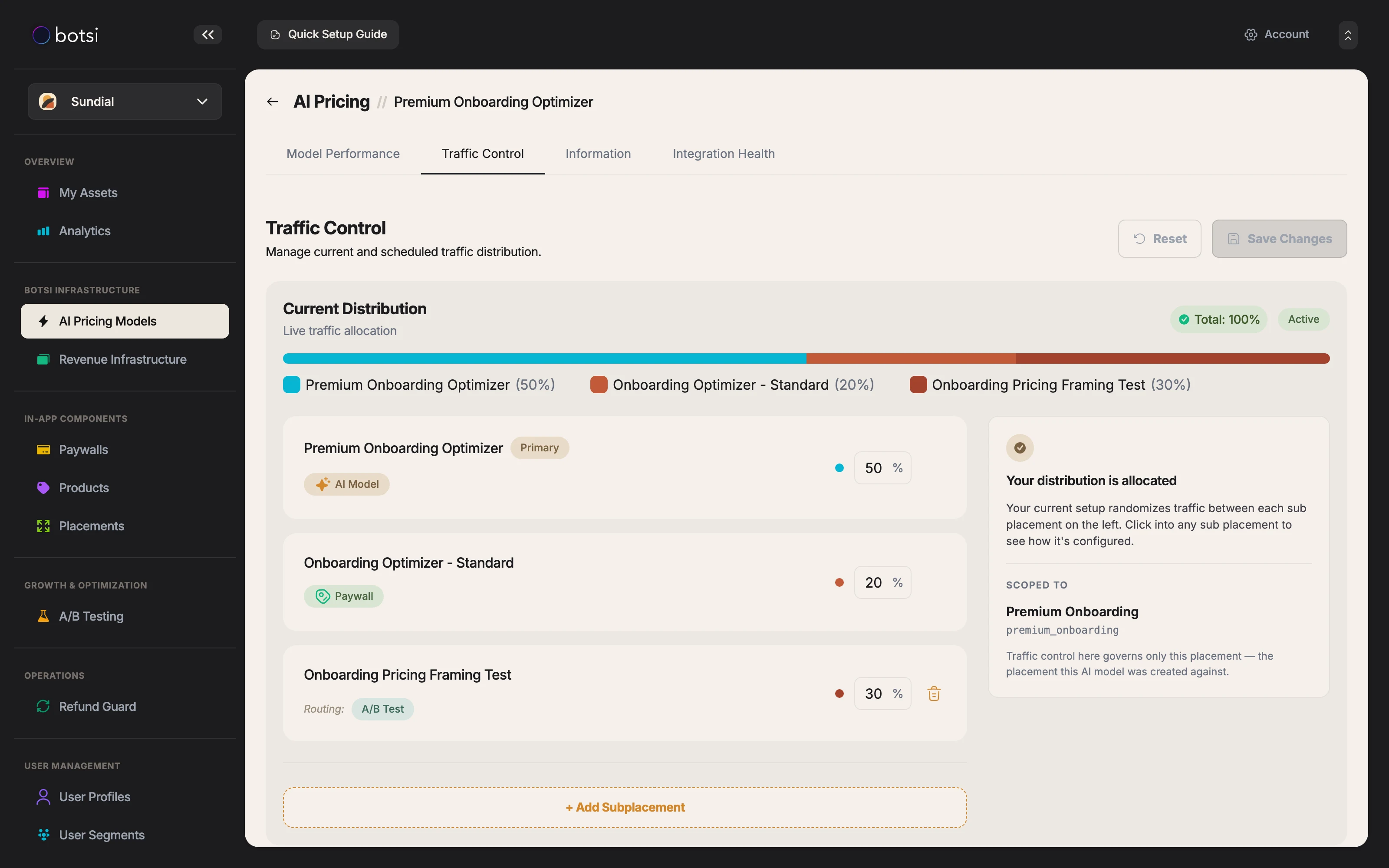
The distribution above gives the model half the traffic, the model's baseline paywall 20 percent, and a placement that is currently routing to an A/B test 30 percent. The stacked bar is the same split drawn to scale, Total: 100% confirms it can be saved, and the Active badge means this is what is serving right now. Selecting the placement row fills the right-hand panel, where Scoped to names the placement the allocation resolves through.
In practice: across the requests that reach this model, three in ten go into the A/B test and receive one of its variants, five go to the AI decision service, and two get the model's baseline paywall. To give the test more traffic, raise its weight, lower another row so the total is still 100, and save.
Running the test for a fixed window
A Scheduled Distribution can point at the same placement, which is how you run a test only between two dates. A schedule fully replaces the always-on distribution while its window is open, and the schedule picker offers placements only, so a scheduled window splits its traffic between placements rather than including the AI Model row. See Scheduled Distributions.
Reading the results
Two systems are doing two different jobs here, and each reports on its own.
-
The A/B test decides which variant wins. Variant selection, and the comparison between variants, belong to the test. Its own results screen is where you read conversion, revenue and engagement for each variant. See Read Test Results.
-
Traffic Control decides how much traffic reaches the test. The weight is the share of this model's requests handed to the placement. It has no influence on which variant a request lands on.
Traffic Control draws its allocation independently on each paywall request, so the share arriving at the test settles on the weight you configured and moves as soon as you change it. Raising the placement from 30 to 60 doubles the traffic reaching the test from the next request onward, with no ramp-up period and no cohort to migrate.
Traffic Control arms are not separate columns yet
Botsi reporting does not currently break out Traffic Control allocations as separate columns. The paywall response carries two attribution fields, aiPricingModelId and isExperiment, and within a model only the AI Model target sets isExperiment to true. A placement target forwards whatever the target placement returns, which is unset for an A/B test, so the model's baseline column contains both baseline traffic and placement traffic.
What to do about it: read the A/B test's own reporting for anything about the test, and use the paywalls served to tell the arms apart. The test's variants, the model's variants and the model's baseline paywall are different paywalls, so paywall-level numbers separate what the model-level columns combine. Keep the test's variants out of the model's own paywall list and the two sets stay cleanly distinguishable.
Which should I use
Botsi runs paywall tests in two places, and they answer different questions.
| Use | When |
|---|---|
| A Traffic Control placement allocation | You want a test to run on part of an AI Pricing Model's traffic, with the model deciding the rest. The share is yours to set and change. |
| A standalone placement A/B test | The test is the whole story for that placement. Every request matching the audience goes into the test, and no model is splitting traffic ahead of it. |
It is the same A/B test object either way, configured in the same place. The difference is how much traffic reaches it and who decides the rest.
Good to know
-
A baseline at 0 can still serve. The baseline paywall is also what the AI Model target falls back to when it cannot get a decision: a request that carries no profile ID, or a decision service error or empty response. A request with no profile ID never reaches the AI Model target at all, whatever the weights say.
-
Saving the always-on distribution writes back to the model. The paywall flagged as best keeps that flag and has its stored weight rewritten from the weights you just saved. The model's own weight field is not updated, so it goes stale after a Traffic Control edit. Scheduled saves do not do this.
-
Editing the model's weight rewrites part of the split. Changing the weight on the model edit screen rewrites the AI Model and baseline rows of the always-on distribution and leaves the placement row untouched, so the distribution can end up totalling more than 100 and is renormalised at serve time. Reopen Traffic Control after any model weight edit and re-check the numbers.
-
Deleting the placement removes the allocation. If the placement hosting the test is deleted, its allocation row goes with it, silently, leaving the distribution below 100 and the remaining rows renormalised at serve time. Reopen Traffic Control after any placement cleanup.
-
Stopping the A/B test does not change the split. The allocation still points at the placement, so it serves whatever that placement routes to next. If the placement is left with no audience to match, the paywall request fails rather than falling back to the model's baseline. Set the weight back to 0, or remove the placement row, when the test is finished.
See also
- Traffic Control Overview: the dial every model already has, and the three allocation targets.
- Scheduled Distributions: run a distribution between two dates and revert automatically.
- Perform an A/B Test: create the test and run it on a placement.
- Read Test Results: compare the test's variants.
- Create Placements: put a creative behind a placement so Traffic Control can target it.